
Estimated Reading Time: 4 minutes
Introduction
Need to send messages from your laptop? Want to manage WhatsApp while working on your computer? WhatsApp Web is the answer. In this step-by-step 2025 guide, we’ll show you how to use WhatsApp Web, what features it supports, and smart tips for getting the most out of it.
1. What Is WhatsApp Web?
WhatsApp Web is the browser-based version of WhatsApp. It lets you:
- Send and receive messages
- Share media and files
- Manage group chats
- Sync conversations in real time with your mobile device
All without needing to pick up your phone.
2. How to Access WhatsApp Web
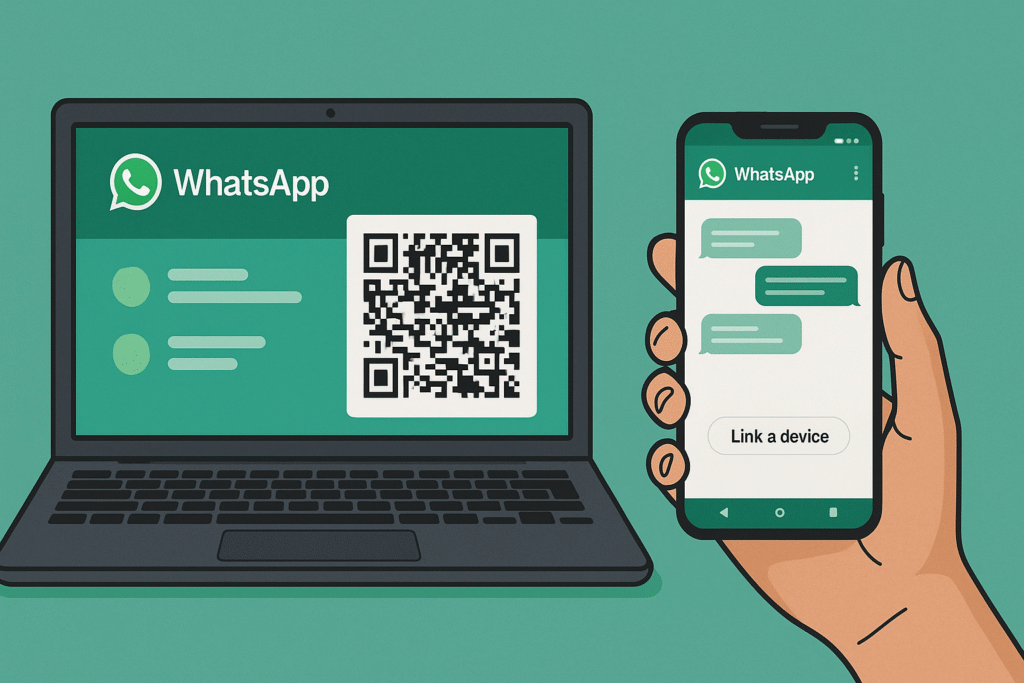
Step-by-Step:
- Go to 👉 https://web.whatsapp.com
- Open WhatsApp on your phone
- Tap “Linked Devices” in the menu
- Tap “Link a Device”
- Scan the QR code on your screen
- Done — your chats now appear in your browser!
✅ Works on: Chrome, Firefox, Edge, Safari
✅ Also available as desktop app for Windows & macOS
3. Features Available on WhatsApp Web
- Real-time chat sync
- File and media sharing (images, PDFs, videos)
- Voice notes
- Emojis & stickers
- Group chat management
- Status viewing
- Multi-device support (you don’t need your phone to be online anymore!)
4. Pro Tips for Using WhatsApp Web
- 📁 Drag-and-drop files directly into a chat
- 🔍 Use Ctrl + F to search messages quickly
- 🌙 Use dark mode for eye comfort
- 🔒 Always log out after using public/shared computers
- 🧩 Pin important chats at the top for fast access
5. What’s New in 2025?
- Improved multi-device syncing (no phone needed after linking)
- Faster load times & emoji search
- Web calls (video & audio) now available in beta
- Enhanced security & encryption updates
Conclusion
WhatsApp Web is more powerful than ever in 2025. Whether you’re managing business chats, sending files, or just chatting with friends, it’s a seamless way to stay connected from your computer.
💡 Bonus Tip: Bookmark https://web.whatsapp.com for quick access.