
Introduction
Taking a screenshot on Windows is a basic yet essential skill — whether you’re saving a receipt, capturing a game moment, or showing a tech issue to support.
In 2025, Windows offers multiple built-in tools and shortcuts for quick captures.
1. Using the Print Screen Key (PrtScn)
- PrtScn: Copies the full screen to your clipboard. Paste into Paint or Word.
- Alt + PrtScn: Captures only the active window.
- Windows + PrtScn: Saves the screenshot directly to
Pictures > Screenshots.
2. Snipping Tool (Windows 10 & 11)
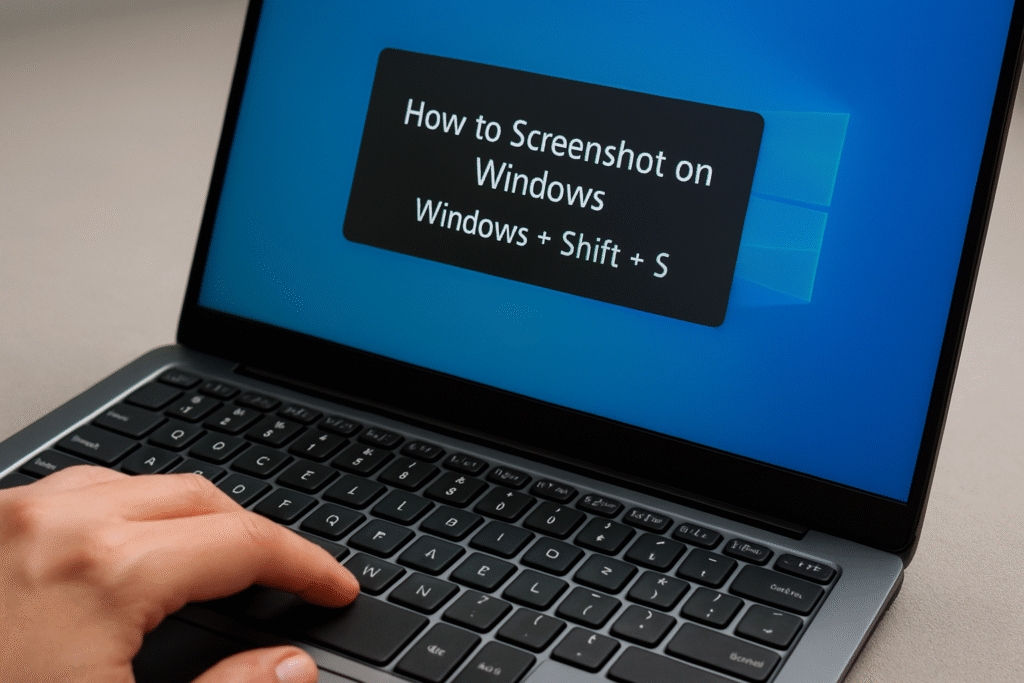
- Press Windows + Shift + S.
- Choose from:
- Rectangular Snip
- Freeform Snip
- Window Snip
- Fullscreen Snip
- Image is copied to your clipboard — paste or save it.
3. Xbox Game Bar Method
- Press Windows + G to open the Game Bar.
- Click the camera icon or press Windows + Alt + PrtScn.
4. Third-Party Screenshot Tools
For advanced features like annotations and scrolling capture:
- Lightshot
- ShareX
- Snagit
5. Tips for Better Screenshots
- Use high resolution for sharper images.
- Crop unnecessary parts to keep focus.
- Name files clearly for easy retrieval.
Conclusion
Whether you prefer keyboard shortcuts or dedicated apps, taking a screenshot on Windows is quick and easy — once you know the right method.